Fault P
Fault Phenomenon
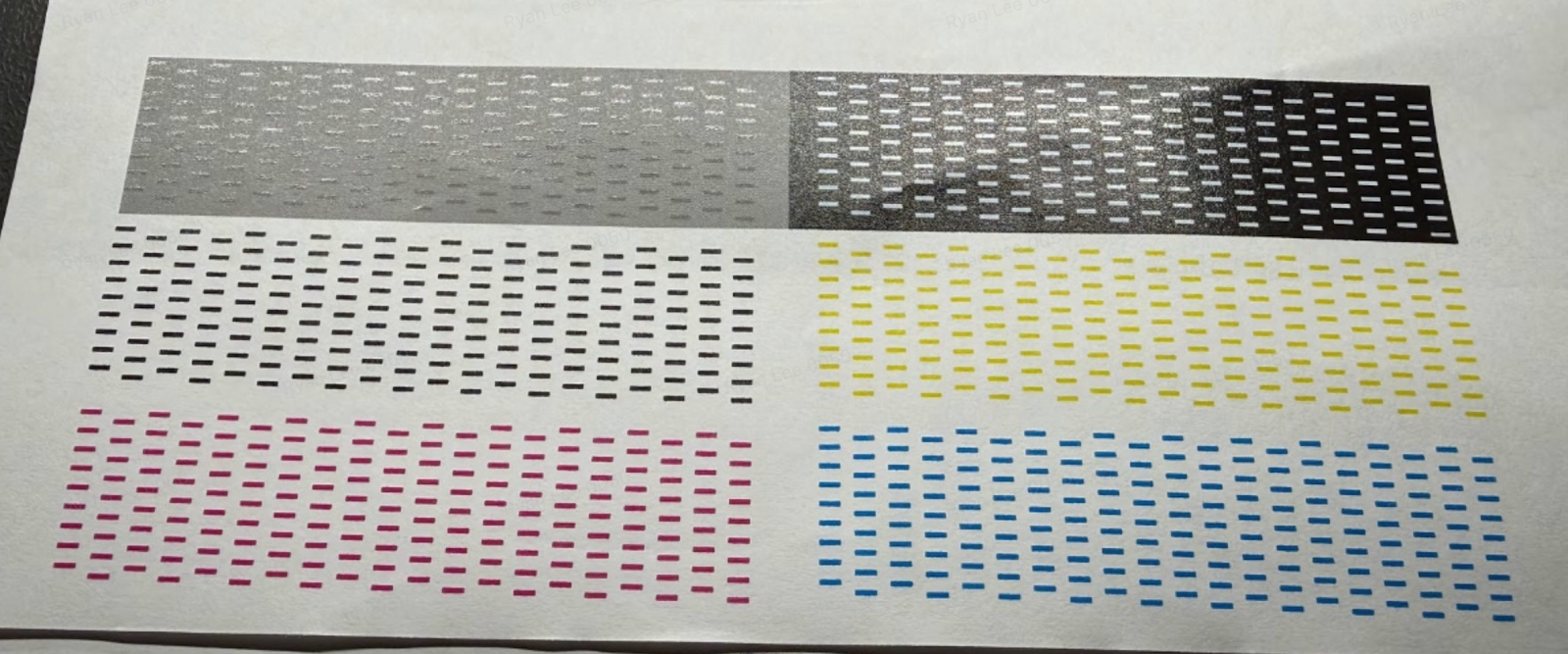
When printing a status chart or a white pattern, the white areas appear significantly faded.
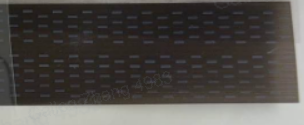
Cause Analysis
If white ink is not used for an extended period or printing frequency is very low, the ink may settle within the system.
This reduces the effective concentration of the white ink and can result in faded prints.
Solution: White Ink Settling Repair
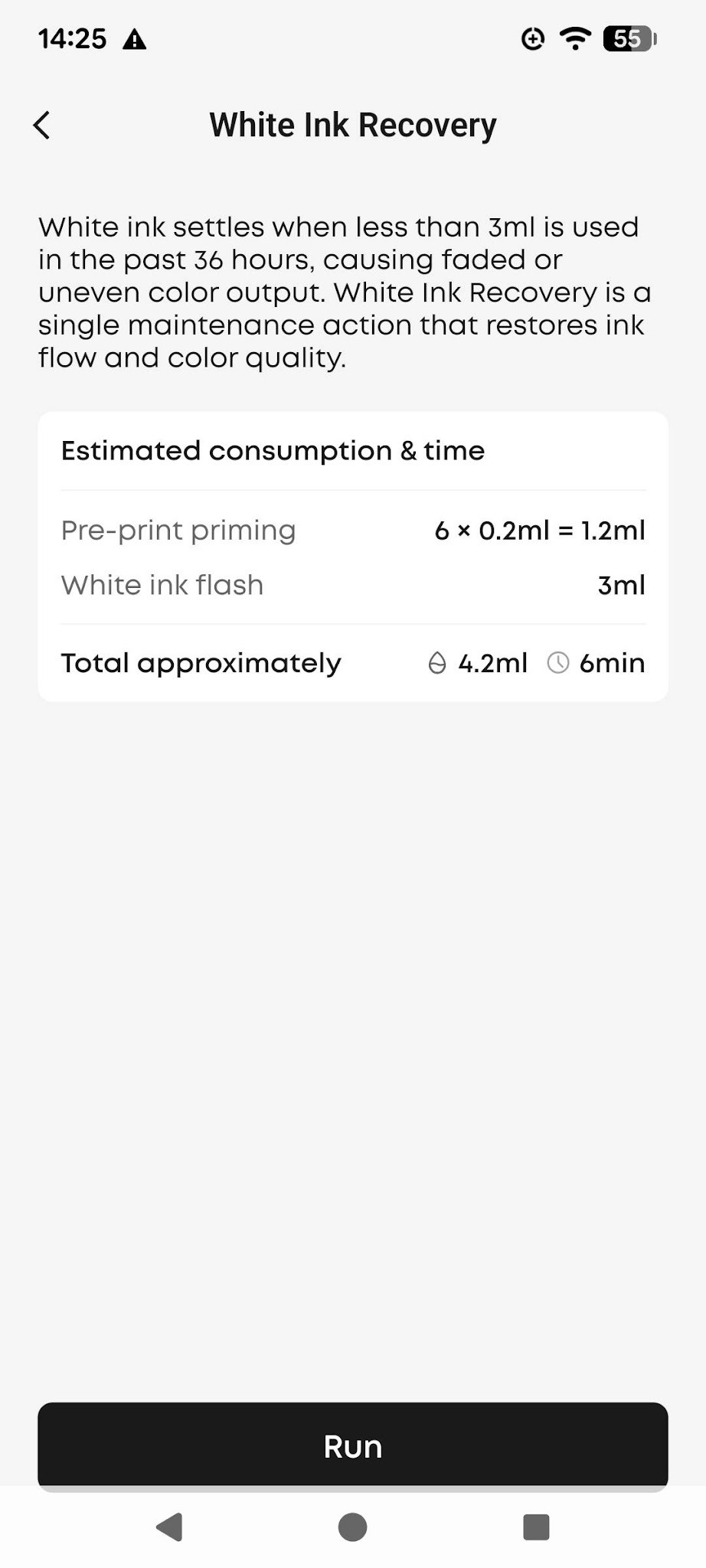
When the system detects that white ink may have settled, it can trigger a repair process to restore uniform ink distribution. After the repair is complete, print a test image to confirm whether the white ink has returned to normal.
Automatic trigger: When the system detects that white ink may have settled, it automatically displays a prompt and starts the repair process. Follow the on-screen instructions and wait for the repair to complete.
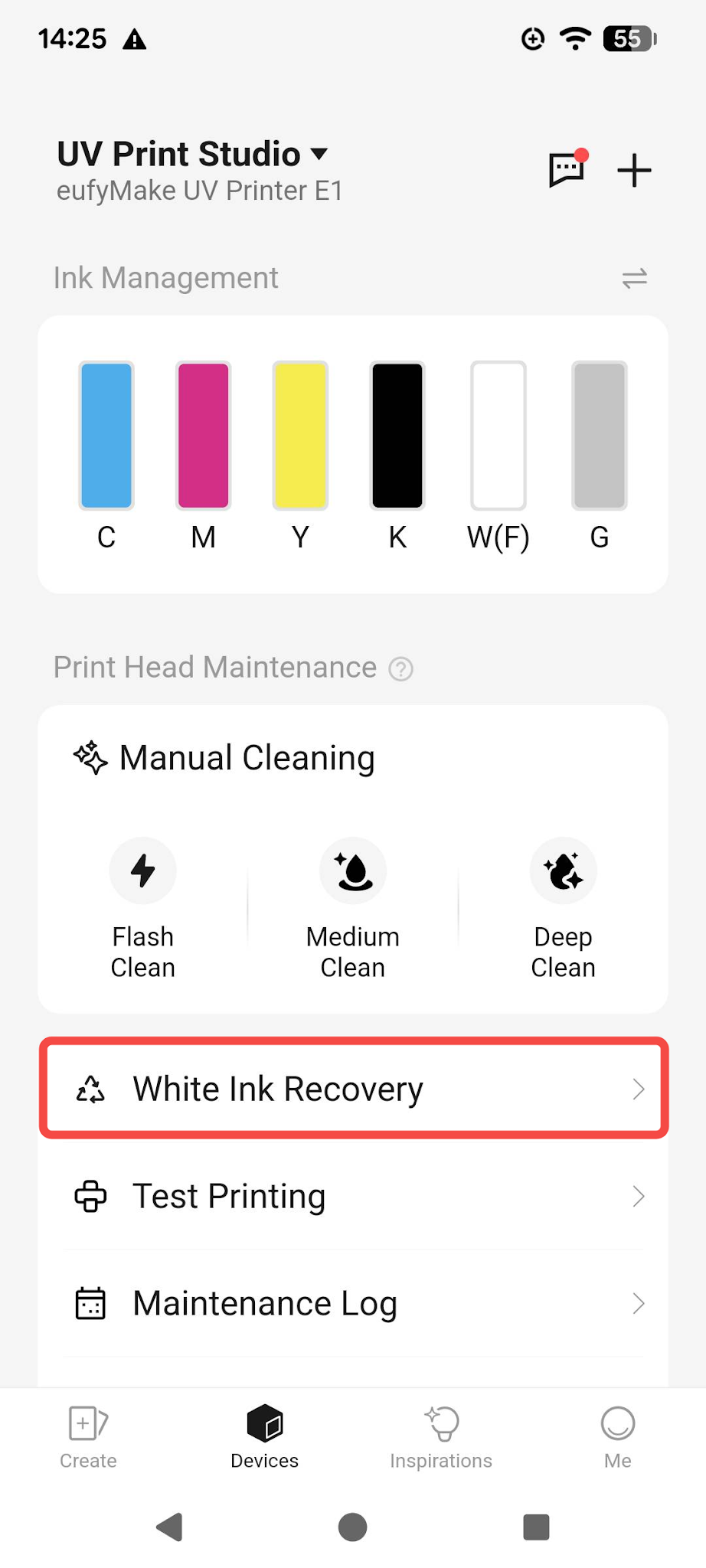
Manual trigger: Go to the maintenance section in the app or PC client and click the Run button to start the white ink settling repair.
 |  |
After the repair is complete, print a test image to check the result. If the white ink has returned to normal, continue using the printer as usual. If the issue remains, run the white ink settling repair once more.
Nozzle Dropouts After White Ink Settling Repair
In a small number of cases, nozzle dropouts may occur after running the white ink settling repair. If this happens, run one Medium Clean (Enhanced) cycle to resolve the issue.
If the issue remains, contact eufyMake Customer Support
If the white ink fading issue still persists after trying the steps above, contact eufyMake Customer Support and provide the following information so the team can quickly pinpoint the problem:
- Printer SN (device serial number)
- Ink cartridge batch number / ink cartridge SN (found on the cartridge label; a photo is recommended)
- Photo of the printed test image (should clearly show the nozzle dropouts / missing lines)
- Complete operation record: white ink settling repair performed - nozzle dropouts appeared - Medium Clean (Enhanced) performed - result
- Printer logs (exported via the App / PC client; includes error codes and maintenance records)
henomenon
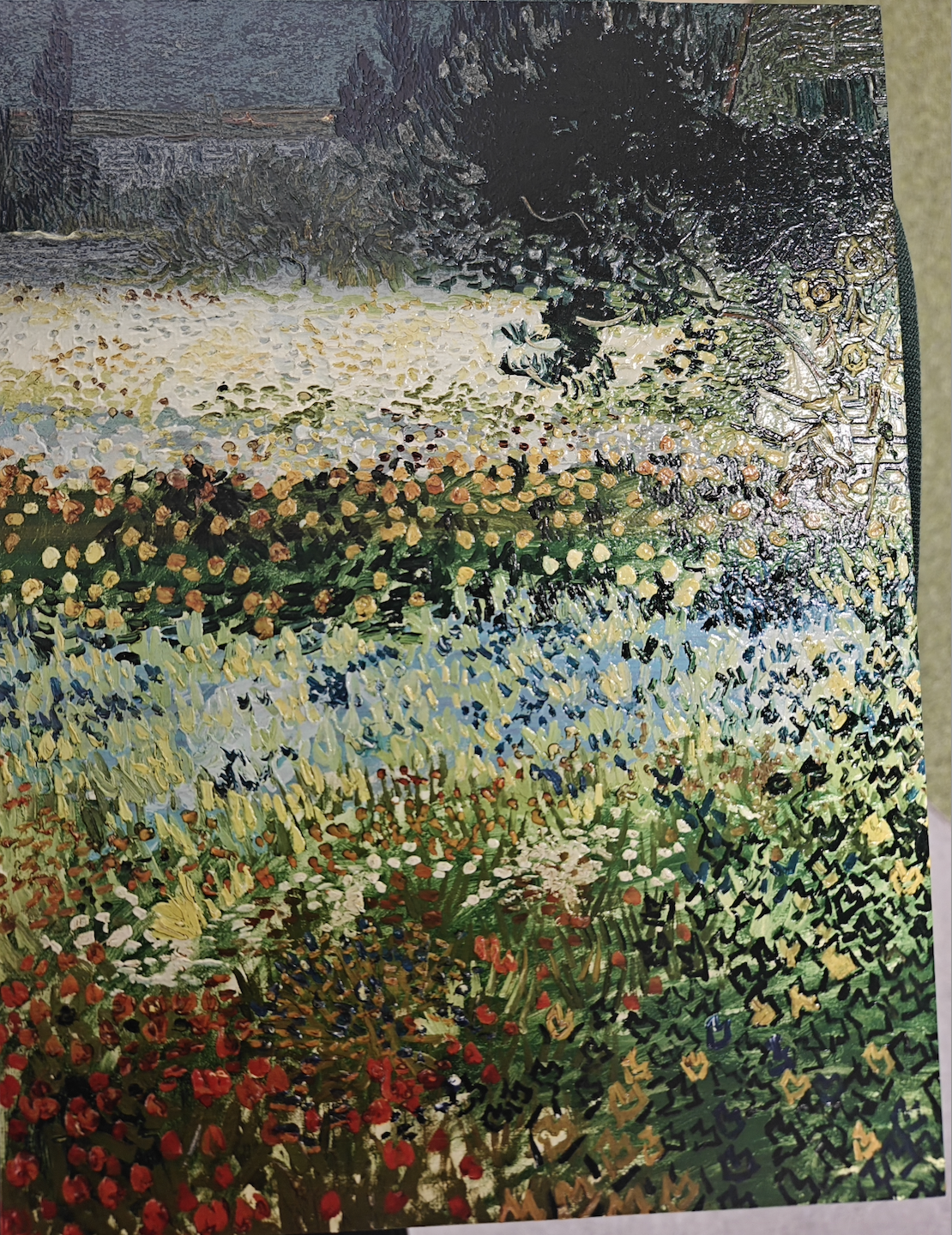
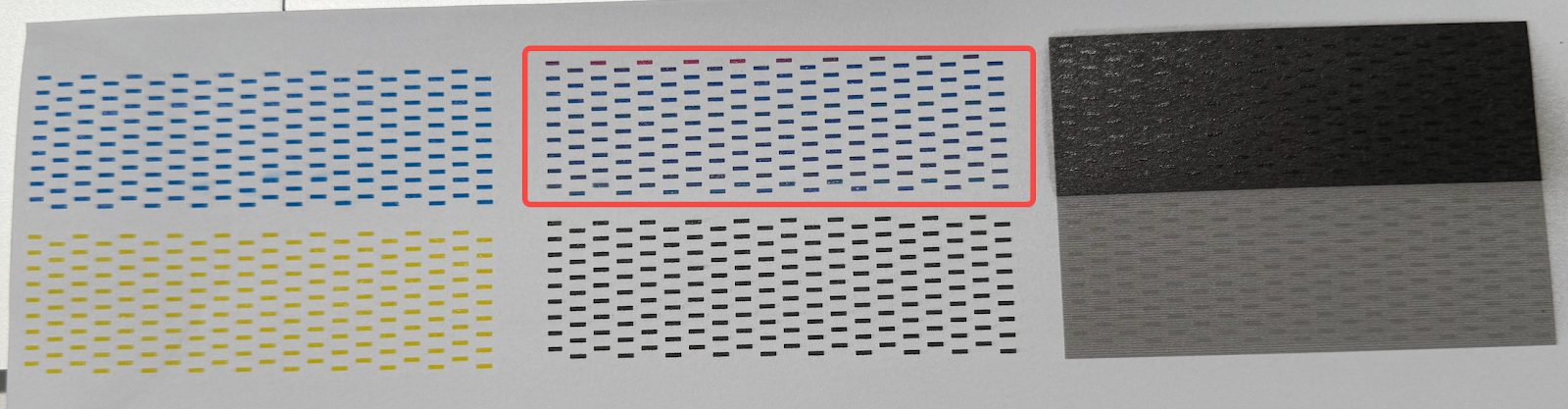
The color of the printed image does not match the original image and is mixed with other colors.
When printing the nozzle status diagram, color mixing appears in monochrome test areas. For example, in the red test line shown below, blue traces are present.
Cause Analysis
Printing mixed ink
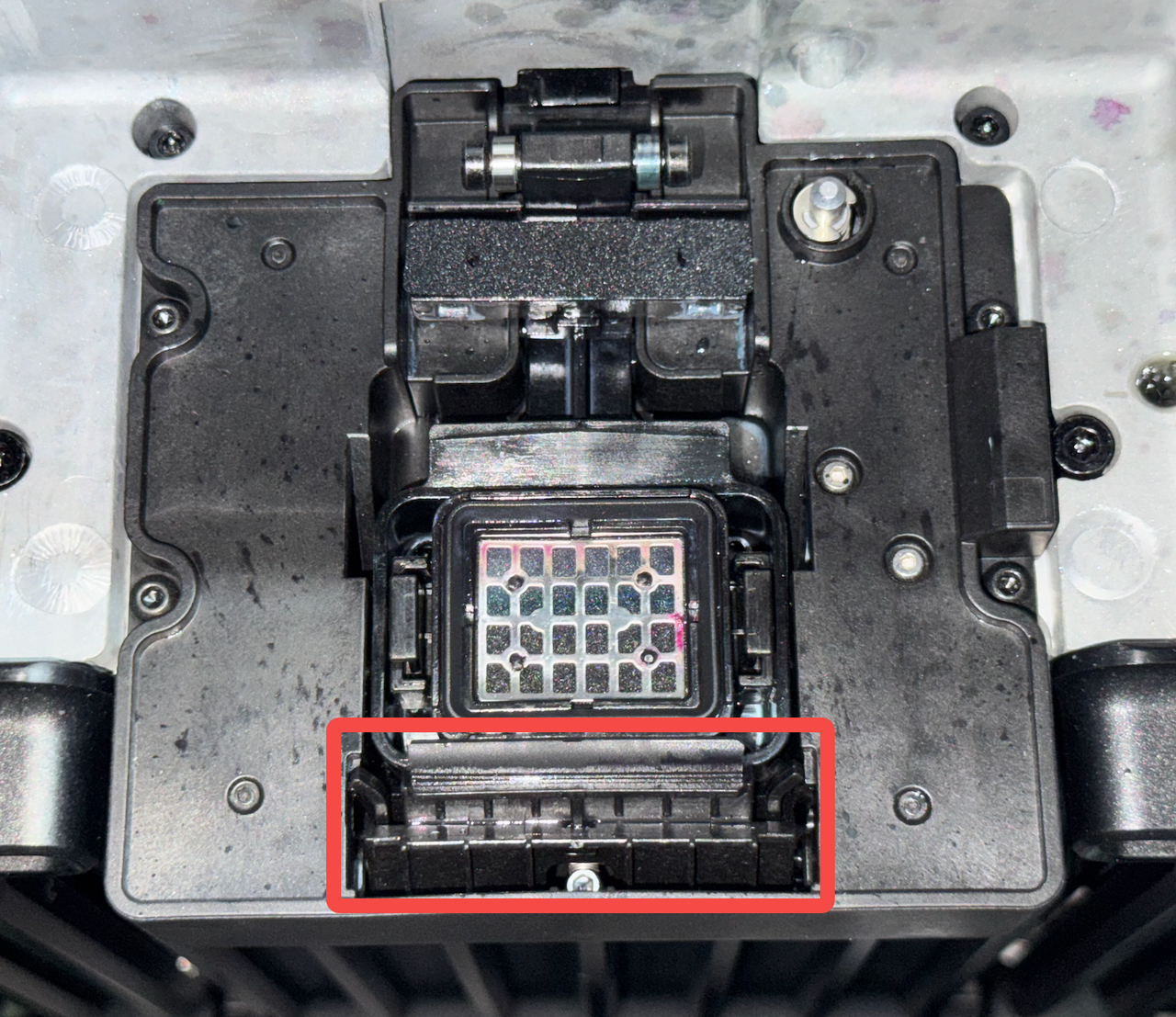
The nozzle wiper is aged, damaged, or detached. When the print head moves out of the ink stack, residual ink on the nozzle surface is not fully wiped off.
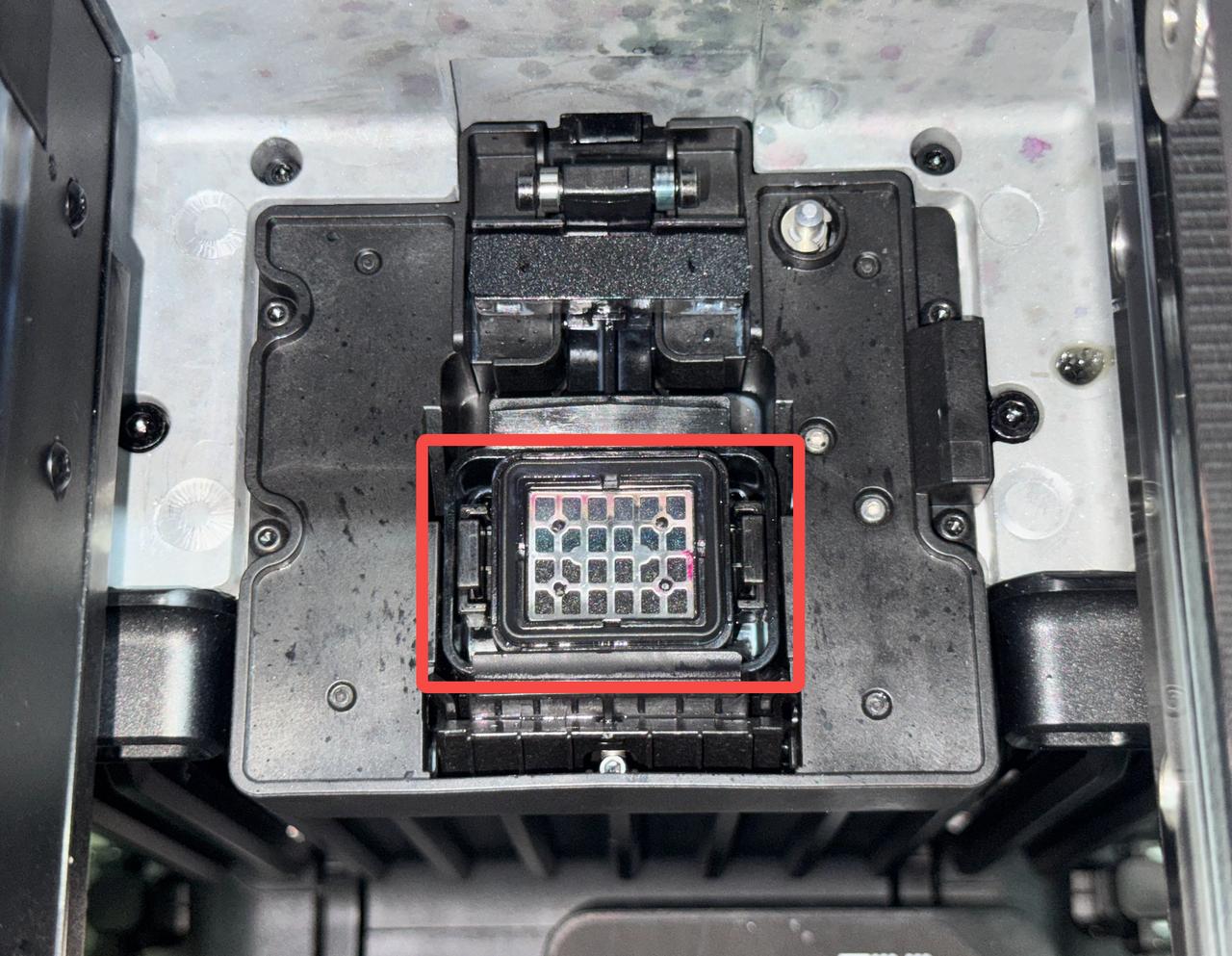
The ink pad was not installed correctly during replacement, resulting in ink contamination and mixing.
A large amount of waste ink has accumulated in the ink stack.
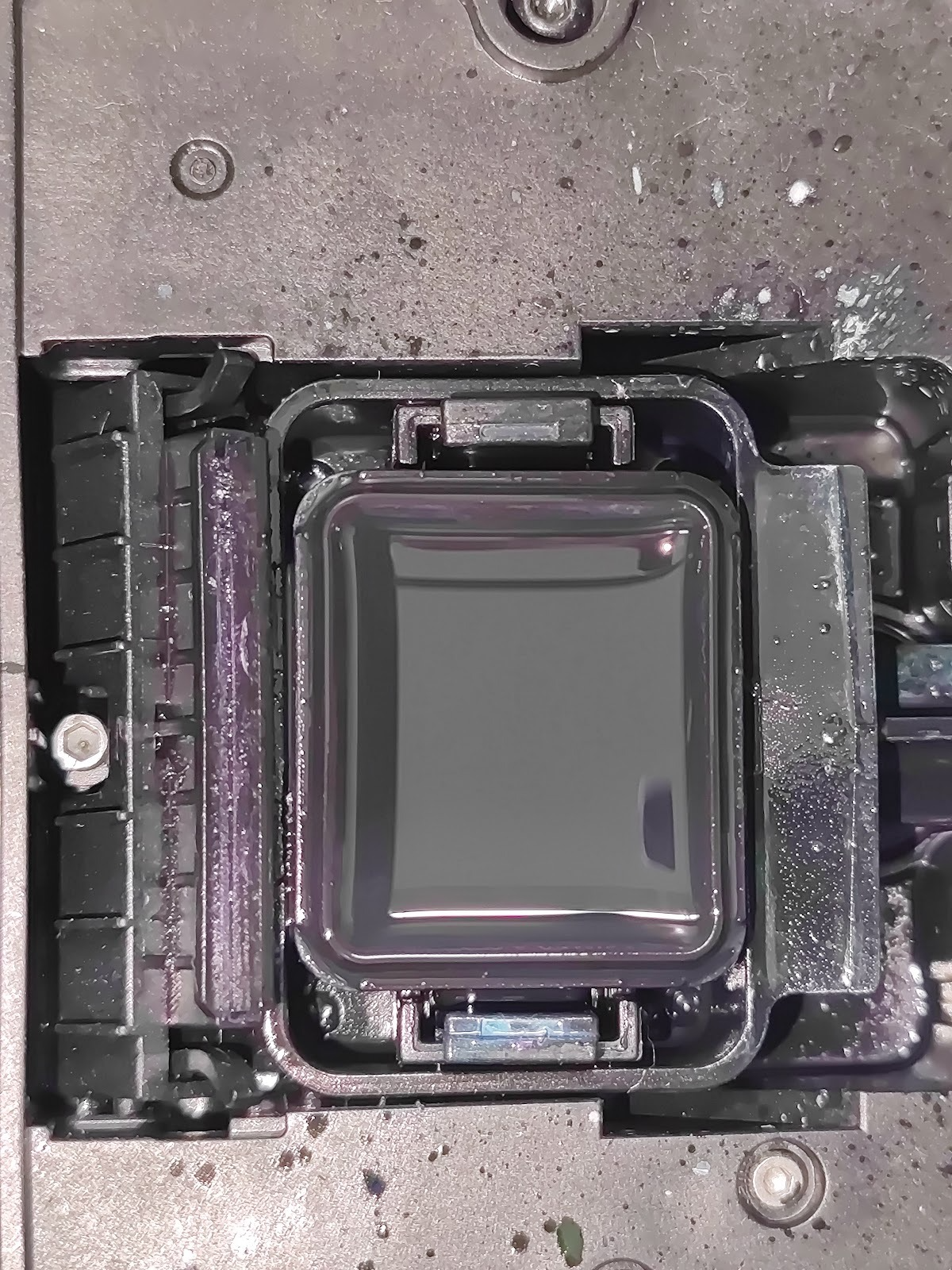
Troubleshooting
Printing mixed ink
Use the APP to move the print head to the center, check the print head's printing surface for ink, and if there is residual ink, replace the squeegee on the new print head.
Confirm whether the ink pad was recently replaced, and verify that it is installed properly. If there are any abnormalities, refer to the how-to video or document to replace the ink pad again.
Please refer to: https://support.eufymake.com/s/article/Introduction-to-Print-Head-Station-Replacement-Kit-and-Replacement-SOP
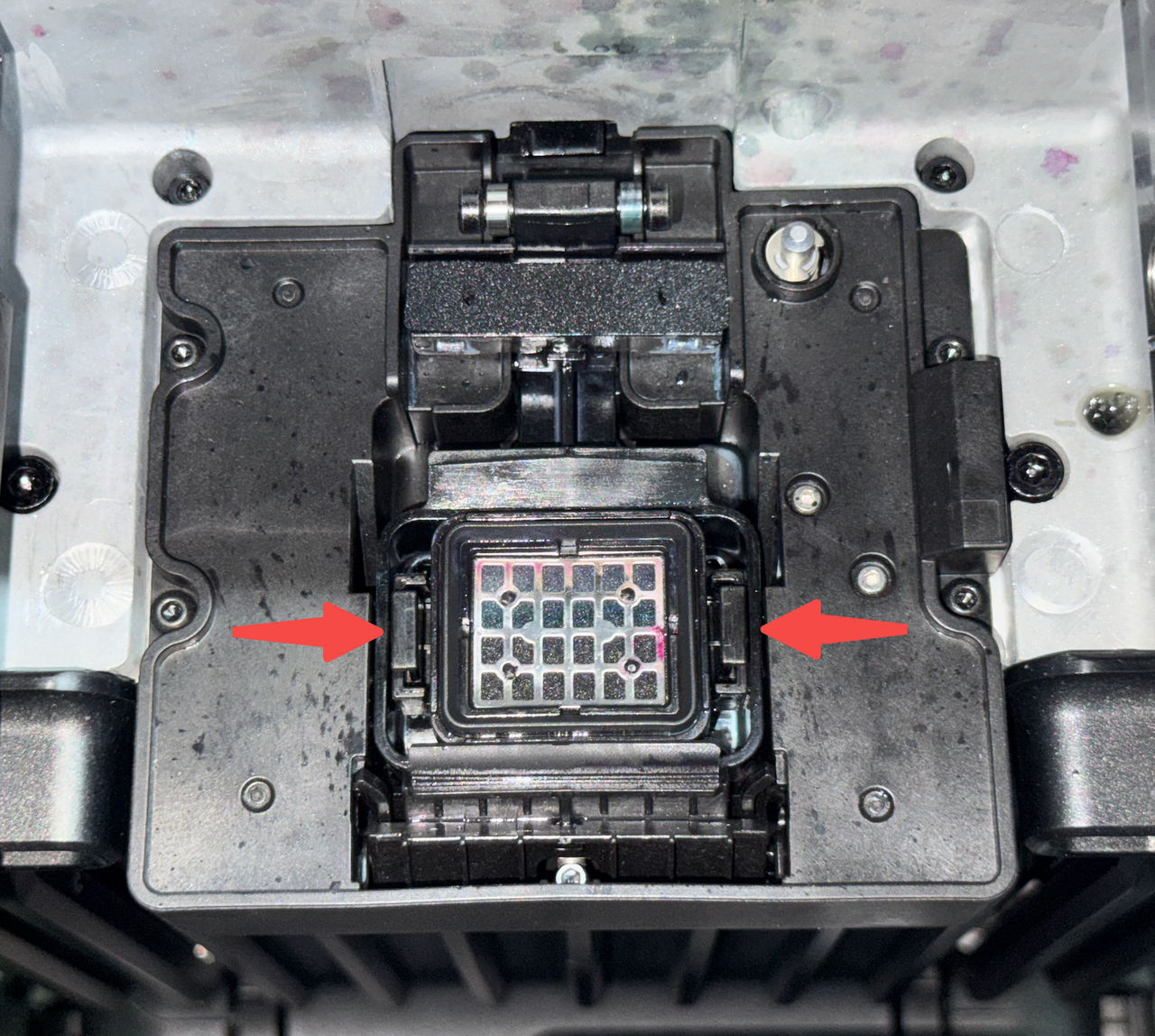
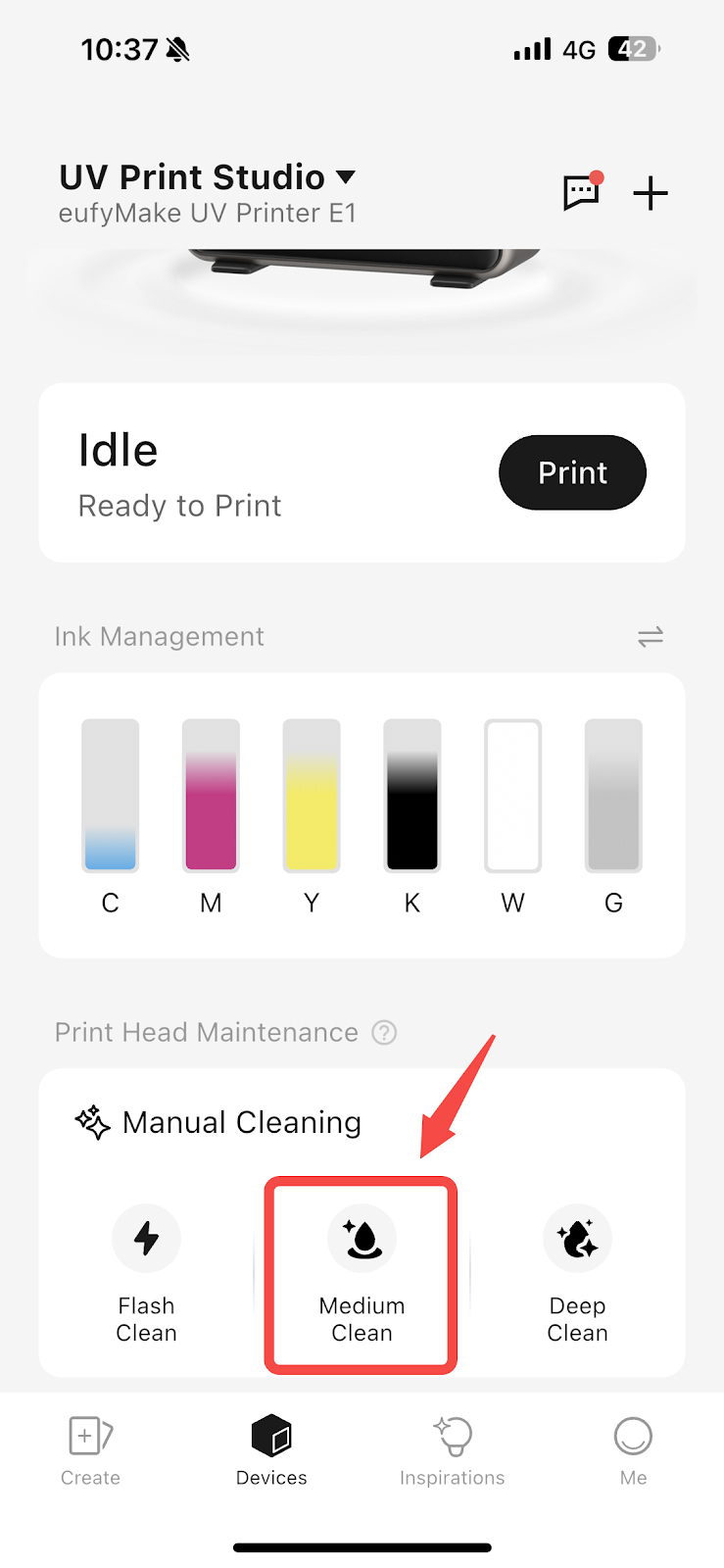
Perform a Medium Clean, and check if there are any changes in the ink stack fluid accumulation after completion. (Note that when checking the ink stack, the printhead needs to be moved away via APP operation).
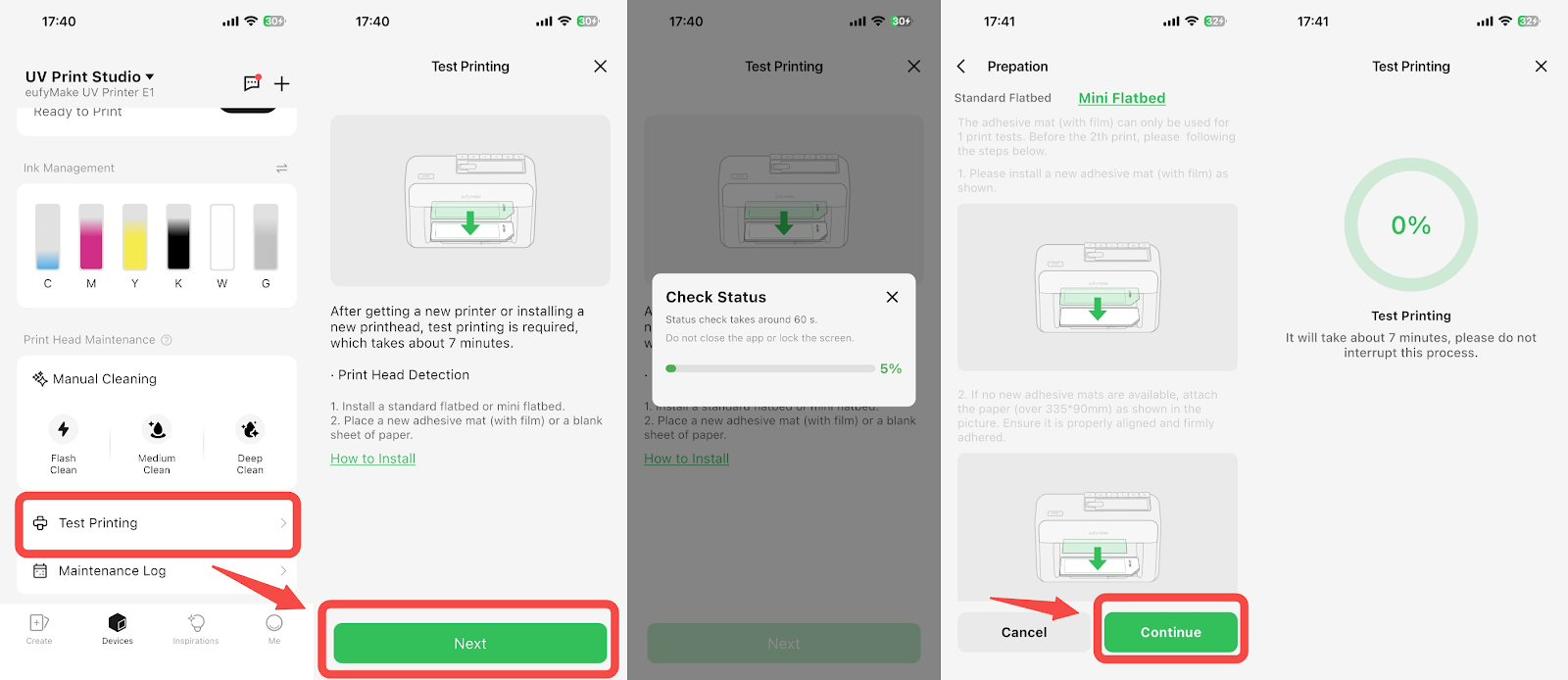
If the liquid accumulation disappears, print a test pattern to check whether the ink mixing has improved.
If the ink mixing is reduced compared to before, you may proceed with normal printing.
After the device has been printing continuously for a period of time, the ink mixing issue will gradually disappear.
If the ink stack fluid level has decreased, but it requires 2 - 3 Medium Clean operations to completely drain the ink stack fluid, it indicates that the waste ink pump pressure is low and the waste ink pump needs to be replaced. Please refer to: https://support.eufymake.com/s/article/Cleaning-Fluid-Pump-Moisturizing-Fluid-Pump-Waste-Ink-Pump-Replacement-SOP
If there is no change in the ink accumulation in the ink stack after performing ink extraction, first confirm how long the machine's ink pad has been used.
If the device has been in use for more than 2-3 months, it may be due to a clogged ink pad, which can be resolved by replacing the ink pad.
If it is a new device or a device that has already had its ink pad replaced, take a photo of the ink stack after ink extraction and provide it to eufyMake Service Support.
Was this article helpful?
That’s Great!
Thank you for your feedback
Sorry! We couldn't be helpful
Thank you for your feedback
Feedback sent
We appreciate your effort and will try to fix the article